
How Do I Use an OEM Parts Finder?
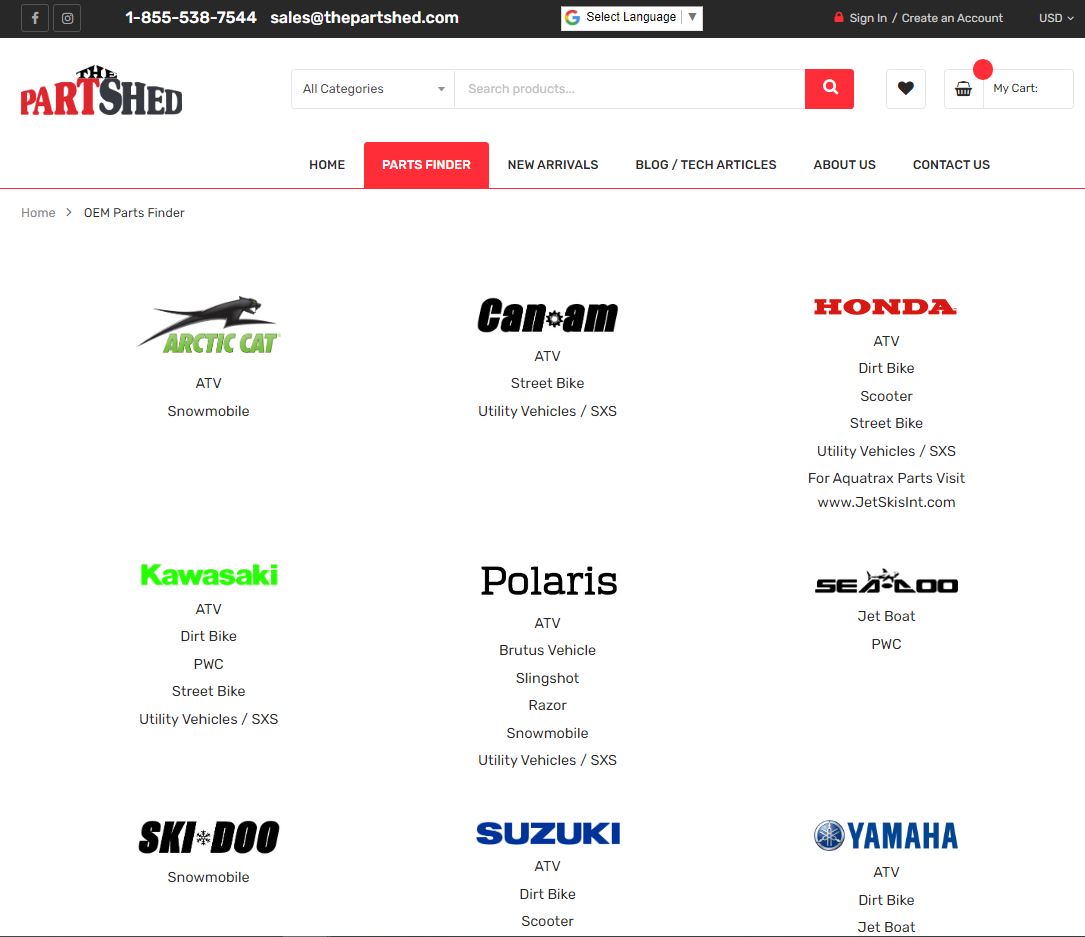
How Do I Use an OEM Parts Finder (Microfiche) When most see a Parts Finder on a website they tend to stray away from it because it seems difficult. Honestly, it’s much easier to use the parts finder than to scroll through countless pages of categories and parts to find the one thing you’re looking for. Here I will be showing you the steps to get to the parts finder, find the part you’re looking for, and transferring it to your cart on The Part Shed.
Let’s say I want to get an air filter for a 2012 Honda CRF250R, here is how we do it!
First navigate to our home page at www.ThePartShed.com. From here there is a bar at the top, click on “Parts Finder”, or scroll down just a little bit and the same thing is on the home page.

In the Honda category, click on dirt bike. It will bring up all years of Honda Dirt bikes. Click on 2012. Then it brings up all models for that year. Click on CRF250R.


At this point all diagrams for this machine are brought up. Diagrams are Separated between two sections, Frame and Engine. An air filter will be under the Air Cleaner diagram in the Frame section. We see it is number 3 on the diagram. At this point scroll down to the parts list, and add whatever quantity needed to the parts list.
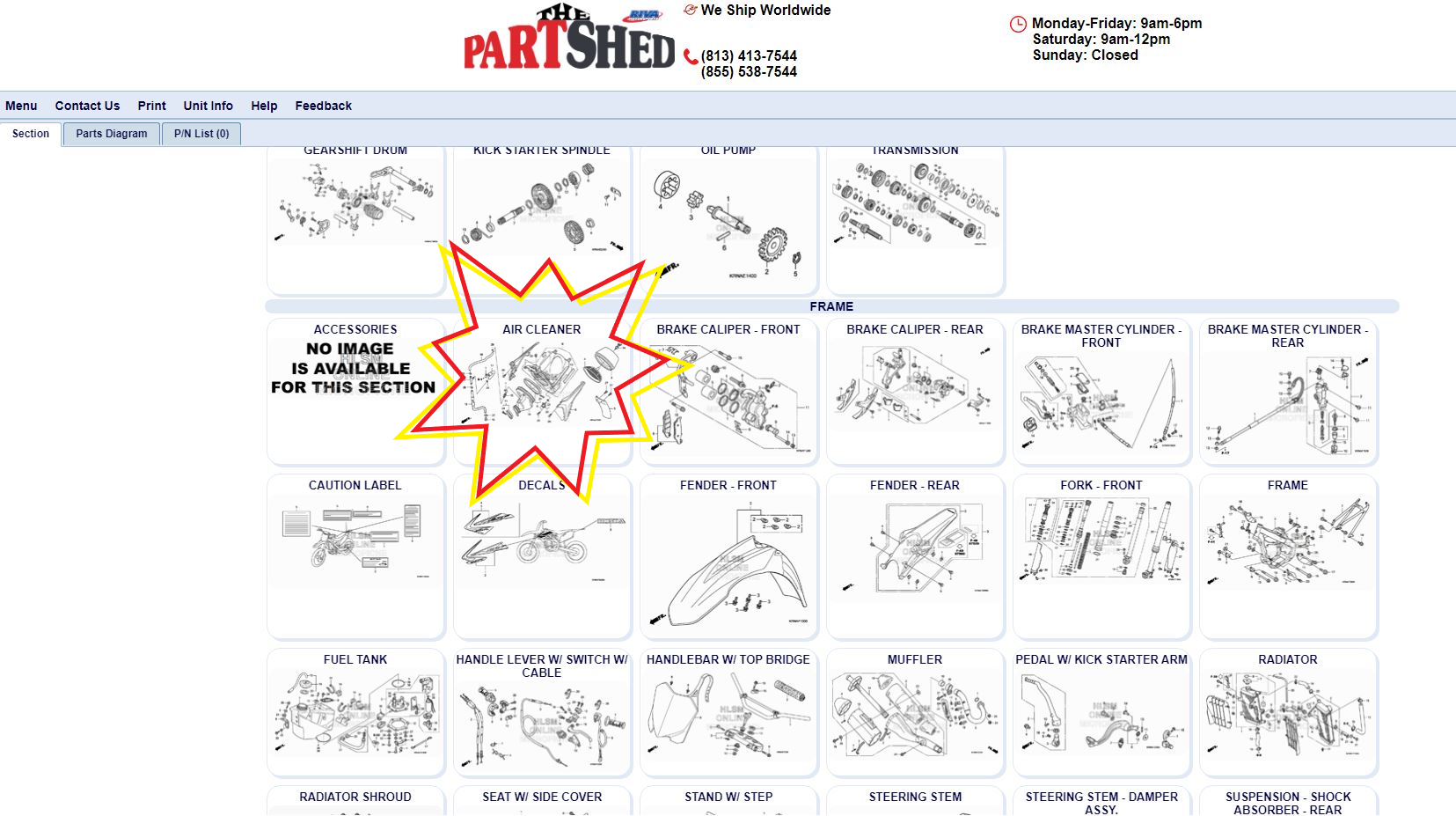

Send it to the cart using the "Send To Cart" button and you’re done!
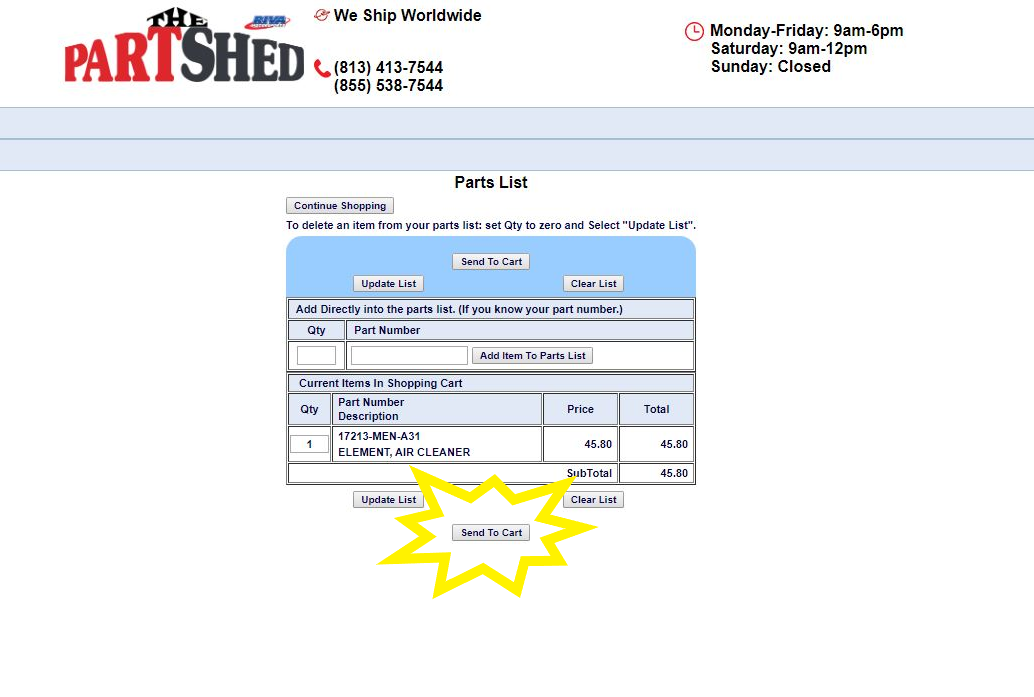

Your cart should look like this. Proceed to checkout and follow the prompts from there. Get parts to your doorstep quickly and efficiently!

Hopefully this helps and puts a little confidence in your search capabilities! And if you just can’t find that one part you’re looking for (some are tricky to find) give us a call at 1-855-538-7544 and our experienced sales team will be happy to help you out!
